


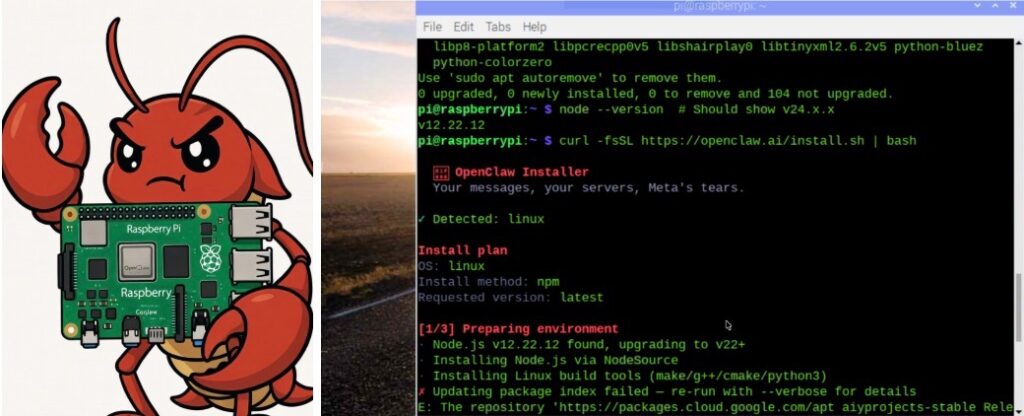
The openClaw and AI agents represent a revolutionary advancement in AI. These agents can now perform real-world tasks beyond mere answering; they can also execute tasks for users. This makes them the next significant evolution of AI in the coming decade, poised to transform the interaction between AI and humans.
The OpenClaw AI agent can operate like a human, running machines and performing tasks similar to those of humans. For instance, after setting up the OpenClaw AI agent on a Raspberry Pi, I can even ask the AI to provide glossaries for me on Blinkit. The AI can automatically open Blinkit, add my requirements to the cart, and automatically buy the items for me.
Not only that, but I can also ask the AI agent to create save files and make backup copies directly. It can even open applications for me. For example, if I want to view all audio files on my machine, I can ask the AI agent to list them out automatically.
The OpenClaw AI agent has a vast application spectrum and usage potential. We have already explored its capabilities and can now use it to perform real tasks beyond answering questions. The OpenClaw AI agent can be installed on various operating systems and PCs. We have created a portable and highly efficient AI agent using a Raspberry Pi for this purpose.
Bill of Material
Here, we will use the Raspberry Pi 4 with 4 GB of RAM. However, for the best shameless performance, I recommend using the Raspberry Pi 5 with 4 GB of RAM and a cooling system for Pi.

| ID | Component | Specification | Quantity |
| 1 | Raspberry Pi 4 / 5 | 4 GB Ram 32 Min Storage | 1 |
| 2 | RPi Cooling Fan Module | 5V Aluminium Heatsink with active cooling fan | 1 |
| 3 | AC to DC Power Adapter | 5v 2A | 1 |
| 4 | 3.3v 2000Mah LiPo Battery | 5V Aluminium Heatsink with active cooling fan | 1 |
Preparing OpenClaw
We assume the Raspberry Pi is pre-installed with Raspbian OS, and you have access to its desktop either using HDMI to a TV screen or remotely using VNC or remote computing. In my case, we are using VNC to remotely and wirelessly access the Raspberry Pi desktop. Now, open the Raspberry Pi terminal first, run the updates and upgrade using the following commands: sudo apt-get update, sudo apt install upgrade. After installing the update, install the OpenClaw. Open the terminal and first install the Node JC using the following commands in the Linux terminal, and also expand the swap size if you want.
curl -fsSL https://deb.nodesource.com/setup_24.x | sudo -E bash -

sudo apt install -y nodejs

node --version

udo fallocate -l 2G /swapfile

sudo chmod 600 /swapfile

sudo mkswap /swapfile

sudo swapon /swapfile

echo '/swapfile none swap sw 0 0' | sudo tee -a /etc/fstab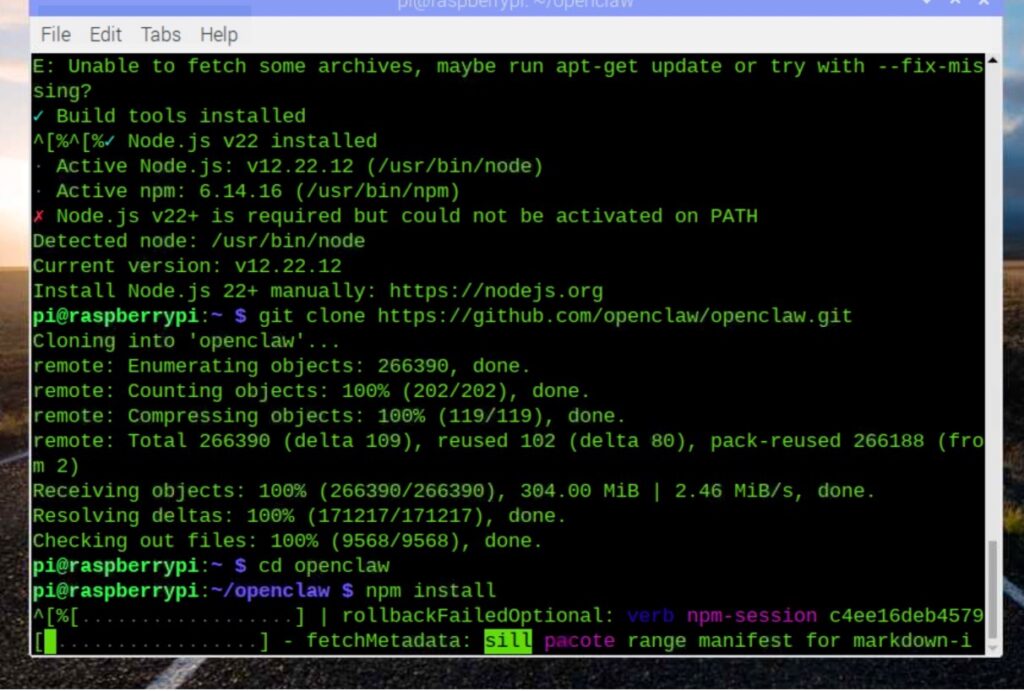
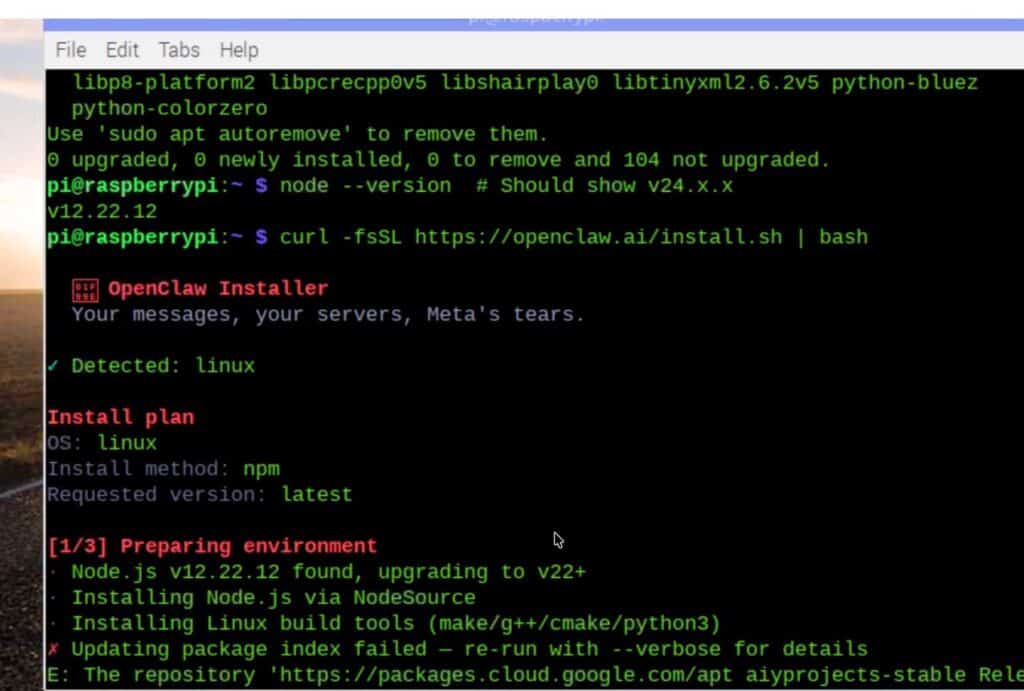
Now install the open Claw using the following command in terminal.
curl -fsSL https://openclaw.ai/install.sh | bash
Then run
openclaw onboard –install-daemon
Verify it
openclaw status
sudo systemctl status openclaw
journalctl -u openclaw -f
# Reduce swappiness for low-RAM devices
echo ‘vm.swappiness=10’ | sudo tee -a /etc/sysctl.conf
sudo sysctl -p
Now that our open claw is installed, we need to configure the AI agent to use different AI models and APIs, such as the default model like Gemini, OpenAI, DeepSeek, and Claude. Additionally, we can configure the Telegram API, WhatsApp, or other integrations if you want to connect and integrate with them.
{
agents: { defaults: { workspace: “~/.openclaw/workspace” } },
channels: { whatsapp: { allowFrom: [“+15555550123”] } },
}
Now you can extend teh swap size
“channels”: {
“telegram”: {
“enabled”: true,
“botToken”: “YOUR_TELEGRAM_BOT_TOKEN”
}
}
Now, your Open claw is ready to perform its tasks. A compact and portable power-pulling AI agent device is ready, equipped with the actual AI that executes actions.
Testing OpenClaw AI agent on a Raspberry Pi
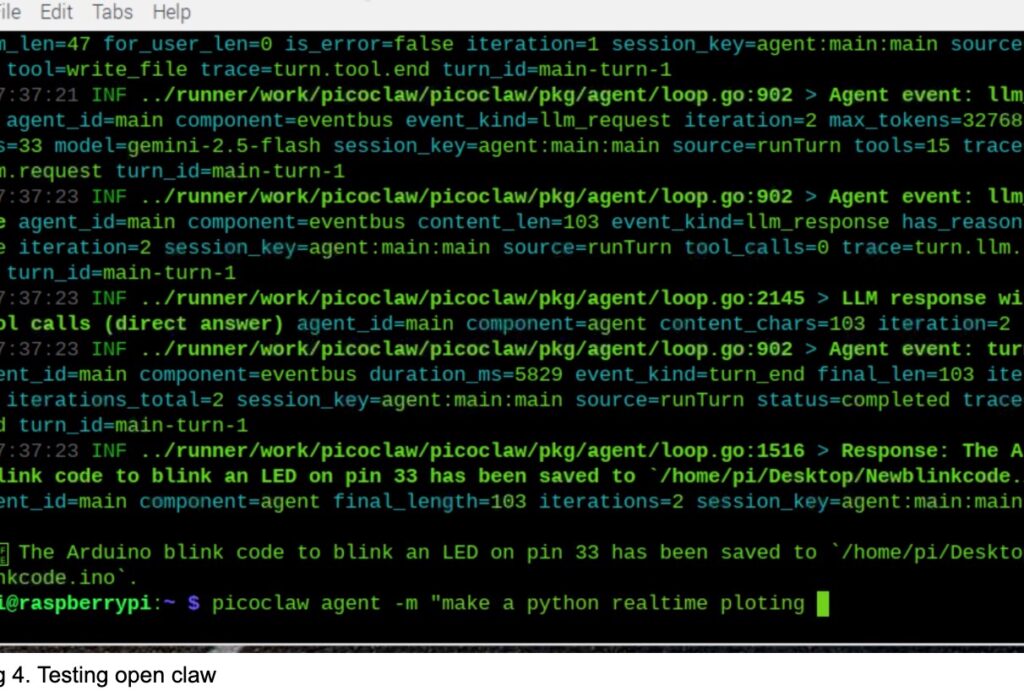
Now, you can ask the OpenClaw to perform any task you desire. Here’s an example: I asked the agent to please create a blink code for Arduino and save it in my desktop folder. It automatically wrote the code and saved it on my desktop. Next, I asked to open the File Manager and list all audio files for me. It quickly displayed all the audio files in my system. Similarly, you can ask the OpenClaw to open Blinkit, add items to the card, and place an order on the website for delivery. It will automatically do all these tasks for you.