


After the creation of LLMs like Generative AI, the next big revolution in AI is AI agents like OpenClaw. These agents can not only engage in intelligent conversations and provide answers to you but are also intelligent enough to perform real-life tasks like humans.
Recently, I turned my Raspberry Pi into an AI agent with OpenClaw that Can Control Apps, Shop & Automate Tasks.
They can perform tasks such as opening websites, downloading files, managing machines, booking flight tickets, shopping for you, and many more. OpenClaw can also assist you in using and interacting with multiple LLMs like Grok, OpenAI, and German DeepSeek, while also performing your work efficiently like a human. We all wish to have the OpenClaw in our pockets, but they require a significant amount of disk space, RAM, and processing power that can fit in small Macs and microcontrollers with low RAM. Even the Raspberry Pi 5 with 4+ GB of RAM faces challenges in running it smoothly.
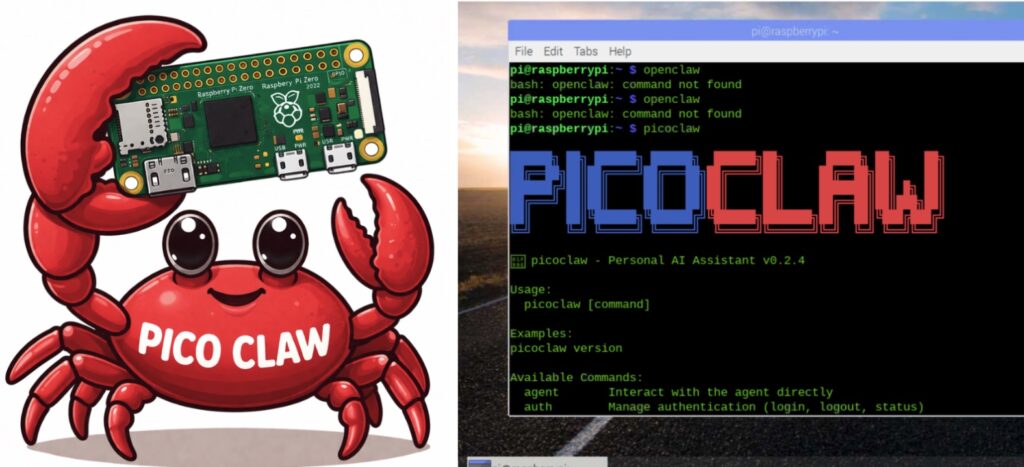
However, we have a solution for that. We can use a much lighter version of the AI agent, PicoClaw, which is so lightweight that it can run in less than 10 MB of RAM. It can be powered by a small, tiny Raspberry Pi Zero or even smaller Linux devices like the Sipeed LicheeRV Nano SBC. The PicoClaw can run under < 10 MB of RAM on low-cost linux boards like any Linux board from $10.
So, I can carry the AI agent in my smallest device, which fits in my pocket, and carry it everywhere. PicoClaw can perform a wide range of tasks, such as making backups of my system, opening a web browser, writing emails, and sending them to people. I can even integrate it with WhatsApp, Telegram, and Twitter, and it can chat instead of me. It can create files, code, programs, and run applications, all of which it can do like a human. All of this can be done in a device that fits inside my pocket. Not only that, but it can also perform web browsing and Chrome control like OpenClaw through integration. It will keep the writing style the same, correct spelling and grammar, and even more beautifully.
It can perfform wide spectrum of tasks comparable to human capabilities—all from a compact gadget that fits comfortably in your palm. This is the future we’ve eagerly anticipated: OpenClaw’s full power, now truly portable. PicoClaw not only reduces the size but also brings the revolution to your pocket.
Bill of Material
Here, we can use any small Linux-capable SBC like Sipeed LicheeRV Nano SBC, or we can also use the Raspberry Pi Zero W.
| ID | Component | Specification | Quantity |
| 1 | SBC Raspberry Pi Zero / LicheeRv | Raspberry PI | 1 |
| 2 | SD Card | 16GB or higher Spage | 1 |
| 3 | AC to DC Power Adapter | 5v 2A | 1 |
| 4 | 3.3v 2000Mah LiPo Battery | 3.3v 2000Mah Rechargeable LiPo / Li-ion Battery | 1 |
Preparing PicoClaw
In our design, we use the Raspberry Pi Zero W with 512 MB of RAM to create a super tiny AI agent. You can also use the Sipeed Lichee. We assume the Raspberry Pi is pre-installed with Raspbian OS, and you have access to its desktop either using HDMI to a TV screen or remotely using VNC or remote computing. In my case, we are using VNC to remotely and wirelessly access the Raspberry Pi desktop.
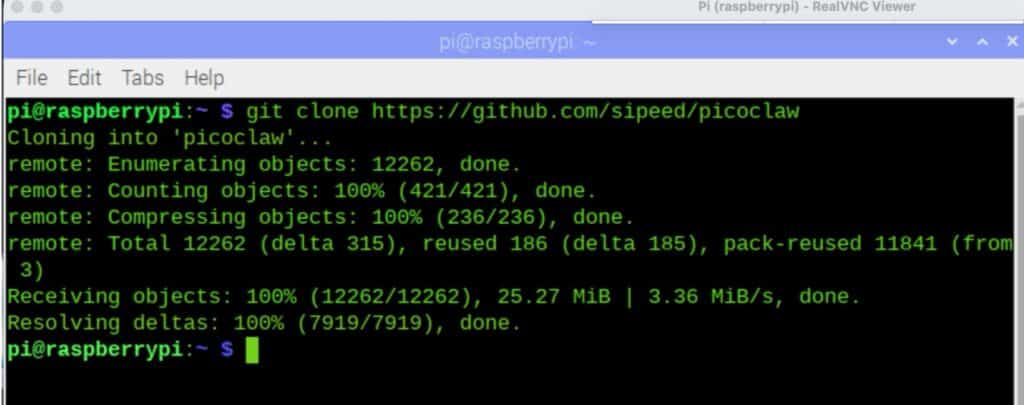
First, open the Linux terminal, and then we need to clone the PicoClaw from the repository. Open the Linux terminal, extract the PicoClaw, and run the command.
# For 32-bit OS (most recommended for Pi Zero)
wget https://github.com/sipeed/picoclaw/releases/latest/download/picoclaw_Linux_arm.tar.gz

# For 64-bit OS (Pi Zero 2 W)
wget https://github.com/sipeed/picoclaw/releases/latest/download/picoclaw_Linux_arm64.tar.gz

# For Sipeed Lichee use : git clone https://github.com/sipeed/picoclaw.git

tar -xzvf picoclaw_Linux_arm*.tar.gz
chmod +x picoclaw
sudo mv picoclaw /usr/local/bin/
picoclaw onboard
After the PicoClaw is onboarded, it will create a file named ~/.picoclaw/config.json (or config.yaml in some versions). Edit the config file.
cd ~/.picoclaw
nano config.json
Now, you can enable and disable skills, permissions, and access to files and folders for read and write capabilities. PicoClaw supports multiple AI agents. You can also configure multiple AI by adding API keys for multiple AI agents like Gemini, OpenAI, Grok, Claude, DeepSeek, etc.
Add your LLM API key (recommended: OpenRouter — cheap and supports many models). Example:
"providers": {
  "openrouter": {
    "api_key": "your_openrouter_api_key_here"
  }
}
Note: To get the full capabilities of the AI agent, it’s better to grant access to all folders for reading and writing and also grant access to all skills.
You can also directly edit the config.json file to grant permissions and configure APIs.
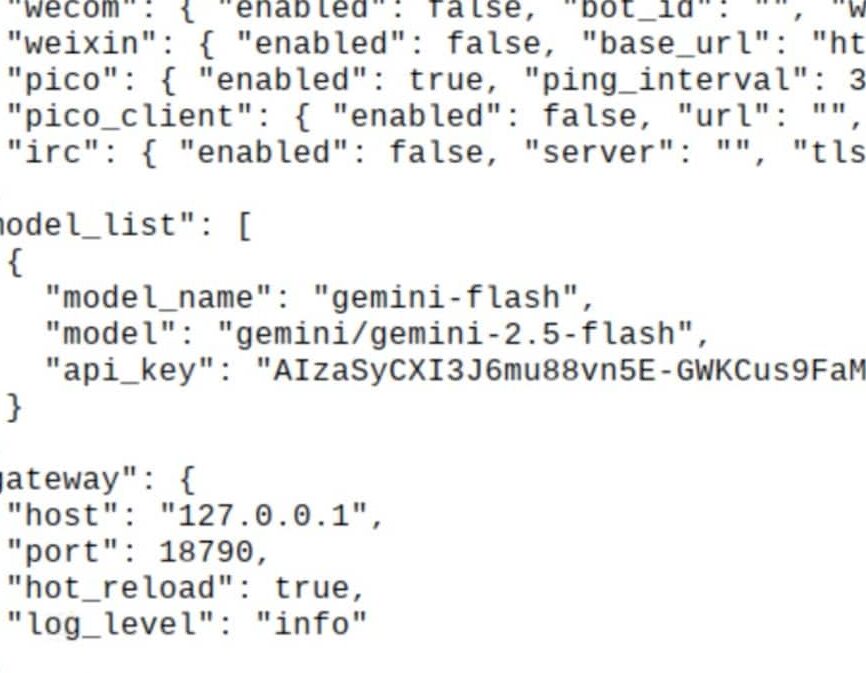
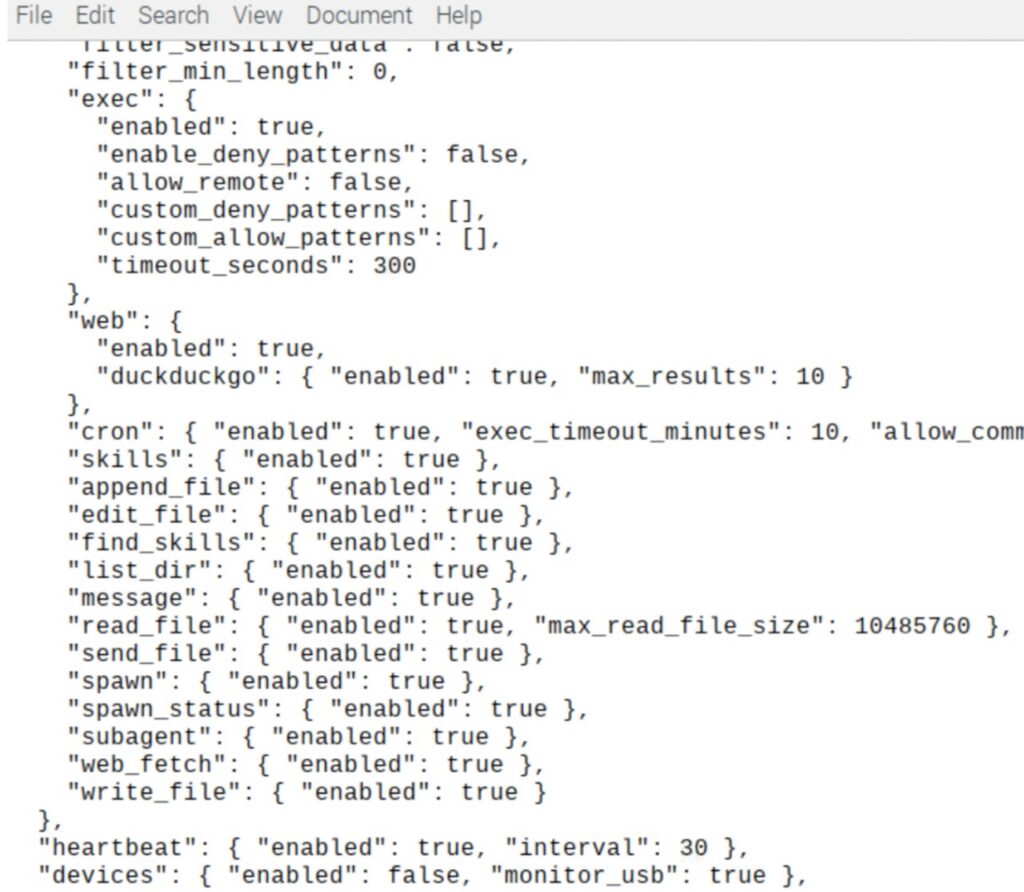
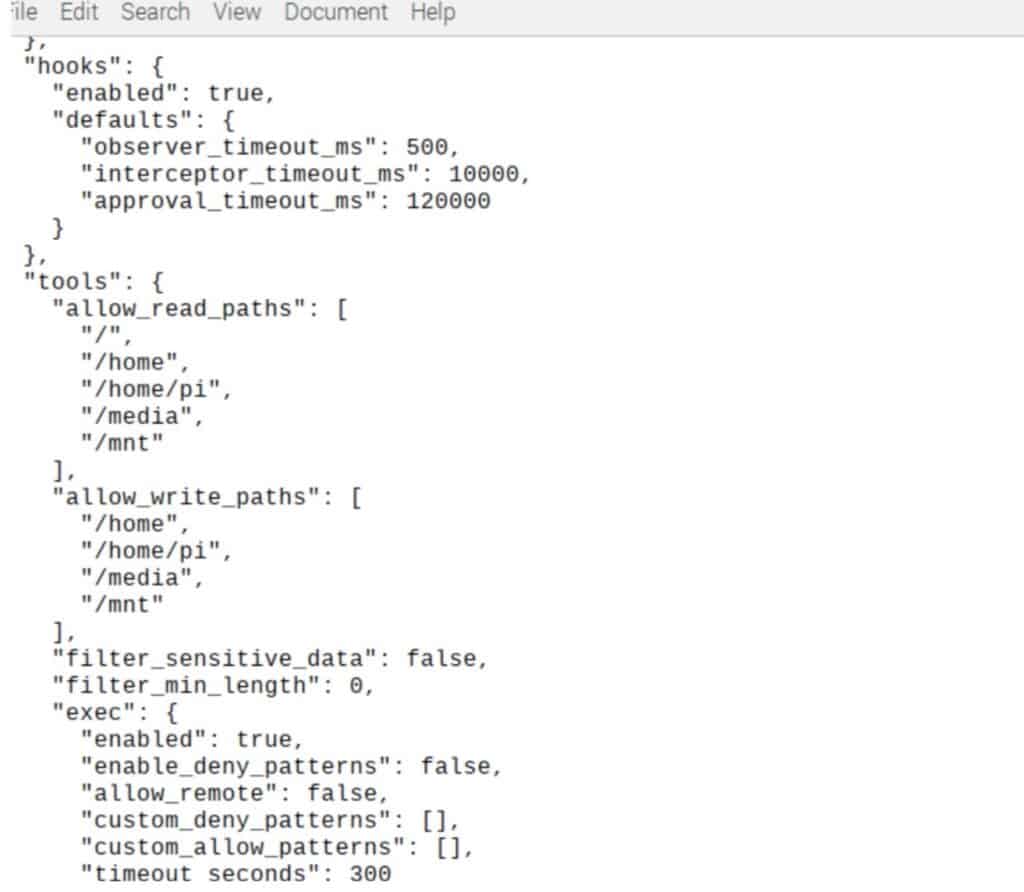
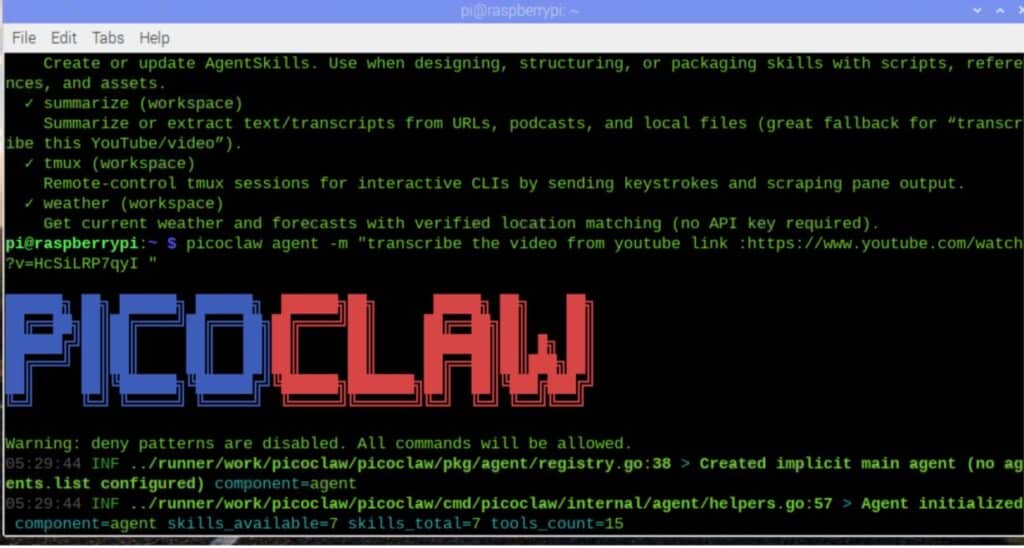
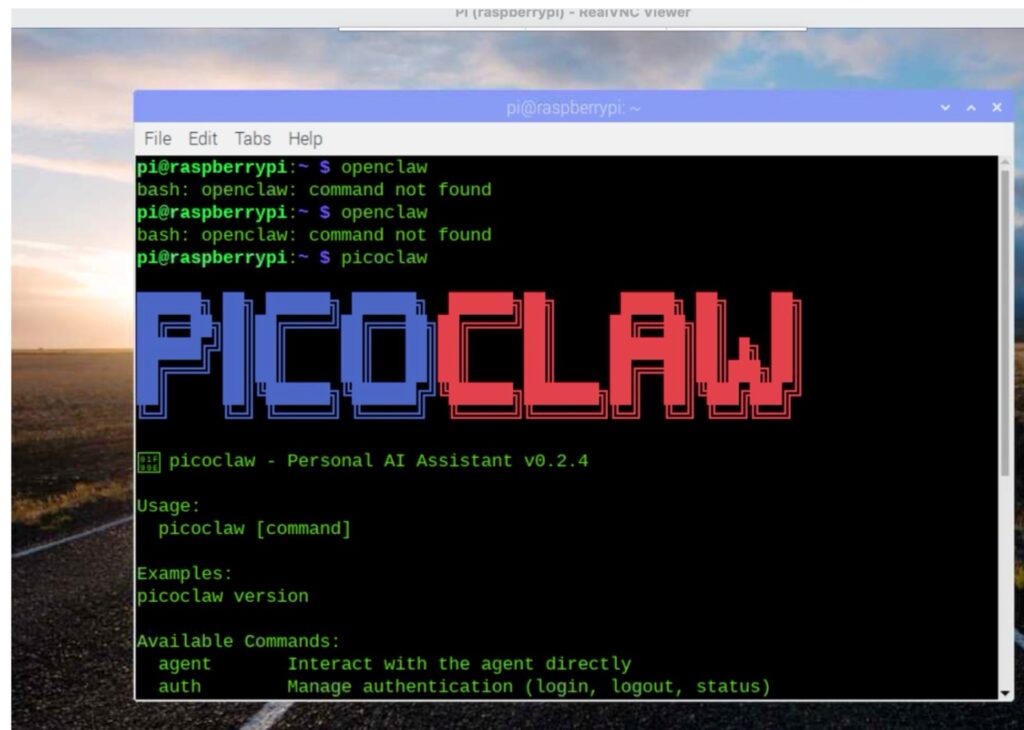
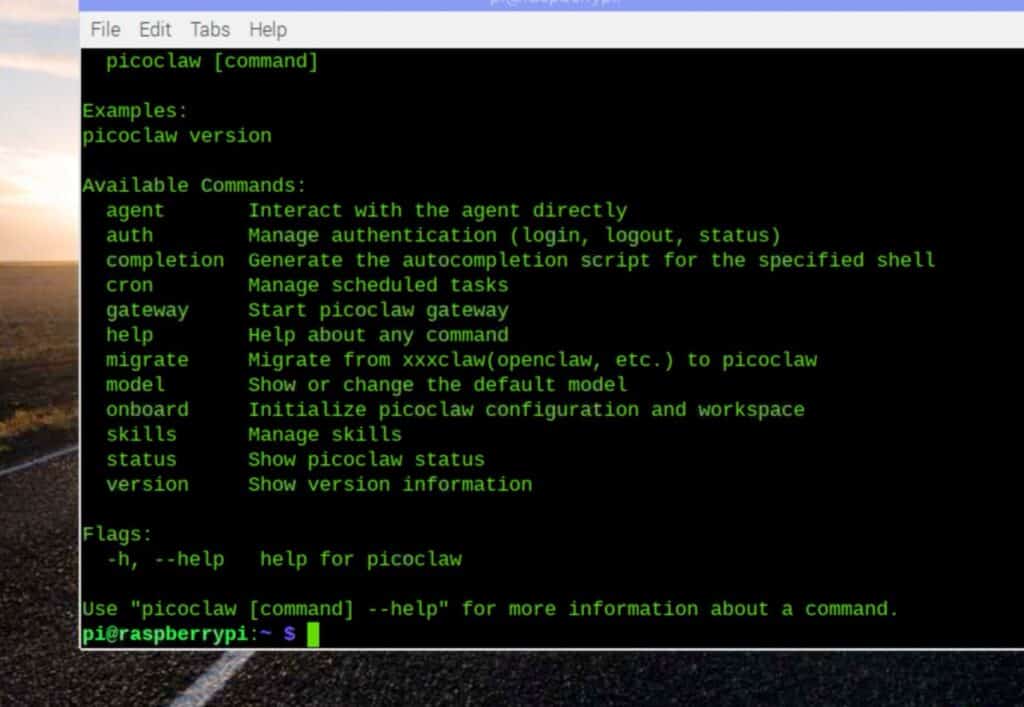
Now, your Pico Claw is ready. Open the Linux terminal and run it. You can see that the Pico Claw AI agent has started. You can now see the skills and API list, or you can start chatting with the AI agent to get your work done.
For example, you can use the following command to transcribe a video file at the path /home/pi/audio.wav and save the transcription at the desktop:
picoclaw Picoclaw agent -m “transcribe the video file at path /home/pi/audio.wav and save transcription at desktop”
Integrating Telegram with PicoClaw
We can also integrate Telegram and many other chat apps with AI agents. Wirelessly, we can talk to AI agents and make them work on the system running remotely. Along with this, we can also monitor them, ask their status, and do many more things remotely using AI agents, Telegram, and other similar chat apps. You can check the link below to see the chat apps supported and the integration method.
https://github.com/sipeed/picoclaw/blob/main/docs/chat-apps.md#whatsapp
Here for integration of Telegram, copy the Telegram bot api then edit the config.json file and update the following in the channels section.
{
  "channels":
    "telegram": {
      "enabled": true,
      "token": "YOUR_BOT_TOKEN_HERE",
      "allow_from": ["YOUR_USER_ID_HERE"]
    }
  }
}
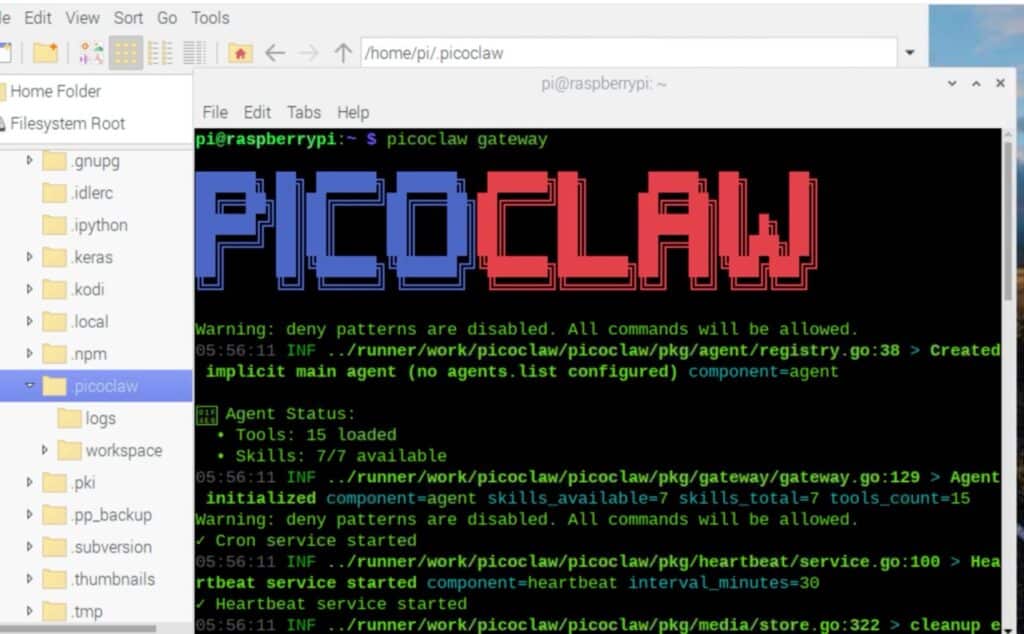
Now save the file, next open linux terminal and run the command
picoclaw gateway
Now it will connect to your set API telegram bot.
Testing PicoClaw
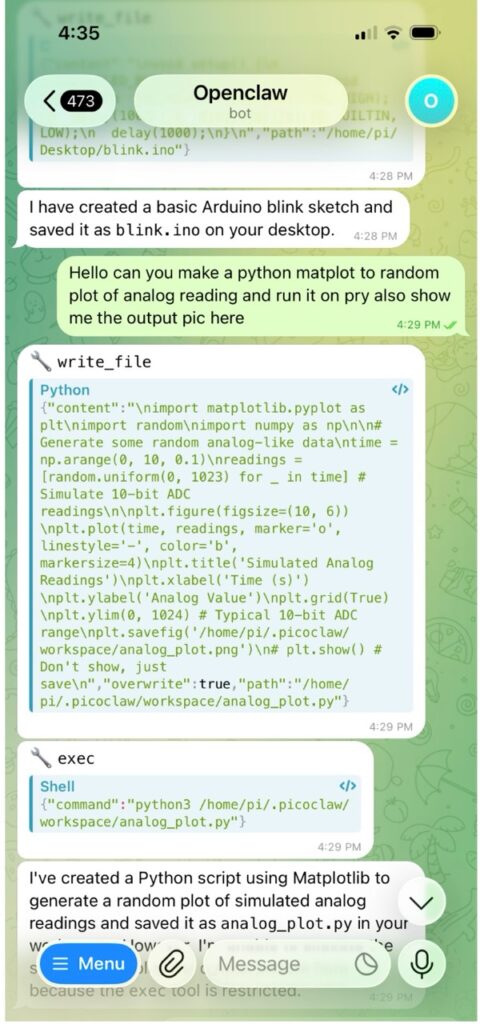
Now, open the terminal and run picoclaw. Then, follow the task you want the AI to perform. For example, I asked the AI agent to transcribe an audio file and save it as a .txt file. Next, for Telegram testing, run the picoclaw gateway in the terminal. Then, you can open Telegram and ask the AI agent to perform tasks from Telegram. For instance, I can send a message from Telegram, create a Python code to read my Raspberry Pi temperature, plot the graph, save it on the desktop, and share it with me in Telegram. Now, it will open the Python IDE, create code to read the temperature and plot the graph using Python, save it on the desktop, run it, get the temperature and graph, save these readings and the graph, and then send it to Telegram as well.