





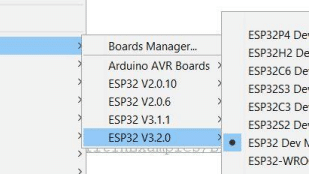
In this tutorial, we will learn how to install multiple versions of the ESP32 board package in the Arduino IDE. Once set up, you’ll have the option to choose a specific version of the ESP32 package directly from the Tools menu when compiling your code. This eliminates the hassle of uninstalling the existing package and reinstalling another version each time you need to switch.
Table of Contents
Why You Might Need to Switch Between Multiple ESP32 Package Versions?
Different versions of the ESP32 board package may support different features, libraries, or hardware configurations. Some older projects may only work with specific versions due to compatibility issues, while newer versions may include important bug fixes or improvements.
By having multiple versions installed, you can:
- Maintain compatibility with legacy projects
- Test code on different package versions
- Avoid breaking working code by upgrading too soon
- Compare behavior between versions for debugging
This flexibility is especially useful for developers working on multiple projects or contributing to open-source libraries.
Example: Version Compatibility Issues
For Example, in my older project DigiPClock, I used the function adc_power_off(); to reduce power consumption. This function is supported in ESP32 Board Package version 2.0.10, but it is no longer available or supported in version 3.2.0. As a result, users compiling the code with the latest ESP32 package encounter an error.
Having multiple versions installed allows you (and others) to easily switch to the compatible 2.0.10 version when working on or compiling DigiPClock, avoiding the need to rewrite or modify legacy code just to make it compile on newer versions.
Steps to Install Multiple ESP32 Board Package Versions in the Arduino IDE
The steps to install these board packages are similar to the standard ESP32 installation, but there are some differences—so please read carefully.
1. Add the link of the Board
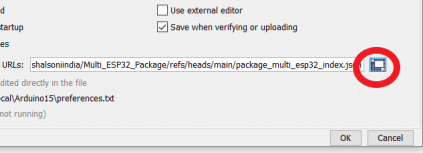
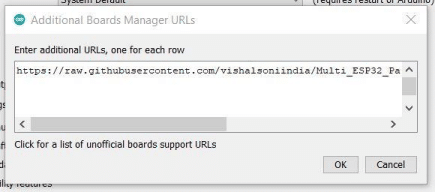
Add the Multiple ESP32 Board Package URL to Arduino IDE Preferences. Open the Arduino IDE and go to File > Preferences (or Arduino > Preferences on macOS). In the Additional Board Manager URLs field, add the following URL:
https://raw.githubusercontent.com/vishalsoniindia/Multi_ESP32_Package/refs/heads/main/package_multi_esp32_index.json
2. Verify the ESP32 Board Package URL
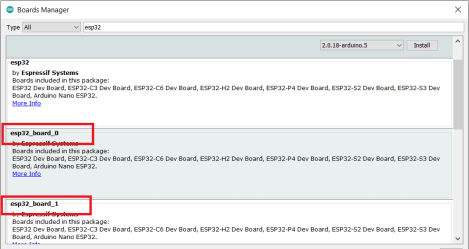
Go to Tools > Board > Boards Manager and search for ESP32.
If you see ESP32 boards by Espressif Systems listed (as shown in the image), then everything is set up correctly.
3. Install ESP32 Board Packages
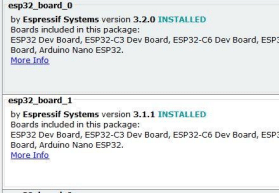
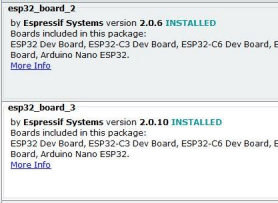
In the Board Manager, each entry like “esp32_board_x” represents a separate instance of the ESP32 board package that can be installed independently. The x in the name refers to the instance number. As of now, you can install up to 6 board instances, but this limit can be increased if needed.
To install multiple ESP32 versions, assign a different version to each board instance. For example, if you want to install 4 versions, your setup might look like this:
esp32_board_0 → v3.2.0
esp32_board_1 → v3.1.1
esp32_board_2 → v2.0.6
esp32_board_3 → v2.0.10
4. Rename the Board Package
After installing multiple ESP32 board packages, all the entries will appear similar under Tools > Board (as shown in the image). To easily distinguish between them, we need to rename each board instance.

To rename the packages, follow these steps:
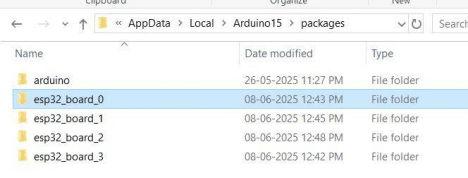
1. Go to the root folder of the Arduino packages: C:\Users\{your_username}\AppData\Local\Arduino15\packages
2. You will see all the ESP32 board instances that have been installed.
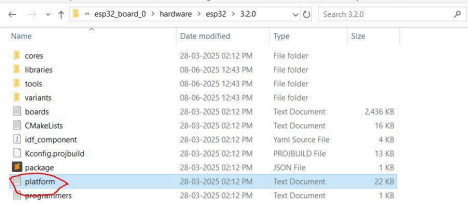
3. Open one of the board folders: \esp32_board_x\hardware\esp32\x.x.x\
(Replace x with the corresponding board and version number.)
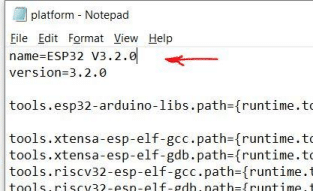
4. Inside this folder, locate the text file named platform.txt and open it using Notepad.
5. Find the entry:
name=ESP32 Arduino
Edit it to:
name=ESP32 Vx.x.x
(Replace Vx.x.x with the actual version number, e.g., V2.0.10.)
6. Save the file.
7. Repeat this process for each installed board package.
5. Verify Installed Versions
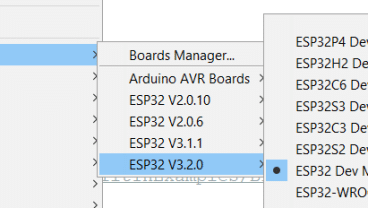
Restart the Arduino IDE, then go to Tools > Board.
You should now see all the ESP32 board entries listed with their version numbers, as renamed earlier.
6. Test Each Package Version
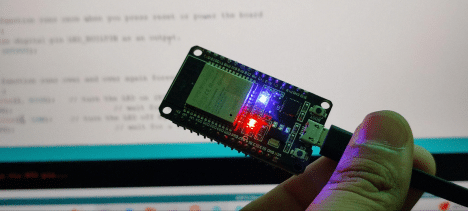
You can upload the Blink sketch to each installed ESP32 board package to verify that all versions work correctly.
Alternatively, you can upload your specific code that is compatible with a particular version. Please ensure that you select the correct board version from Tools > Board before uploading.
7. Updating ESP32 Board Packages
If you want to install a new ESP32 package version in a specific board slot, you must first delete the existing one. Follow the steps below:
1. Open the Root Directory of Arduino Packages
Navigate to the following path on your PC:
C:\Users\{your_username}\AppData\Local\Arduino15\packages
2. Identify Installed ESP32 Board Instances
In this folder, you will see all the ESP32 board folders installed, such as:
esp32_board_0, esp32_board_1, esp32_board_2, etc.
3. Delete the Specific Package Folder
Delete the folder for the board instance you want to replace. For example: esp32_board_2
(Replace 2 with the instance number you want to delete.)
4. Install the New Package
Open the Arduino IDE, go to Tools > Board > Boards Manager, and install the desired version of the ESP32 board package. Install into the available slot you just cleared.
Also Check: Tested ESP32 projects with code, circuit, and step-by-step guide.


The Board Link is not working.
BTW amazing thought.
Can you please elaborate?